
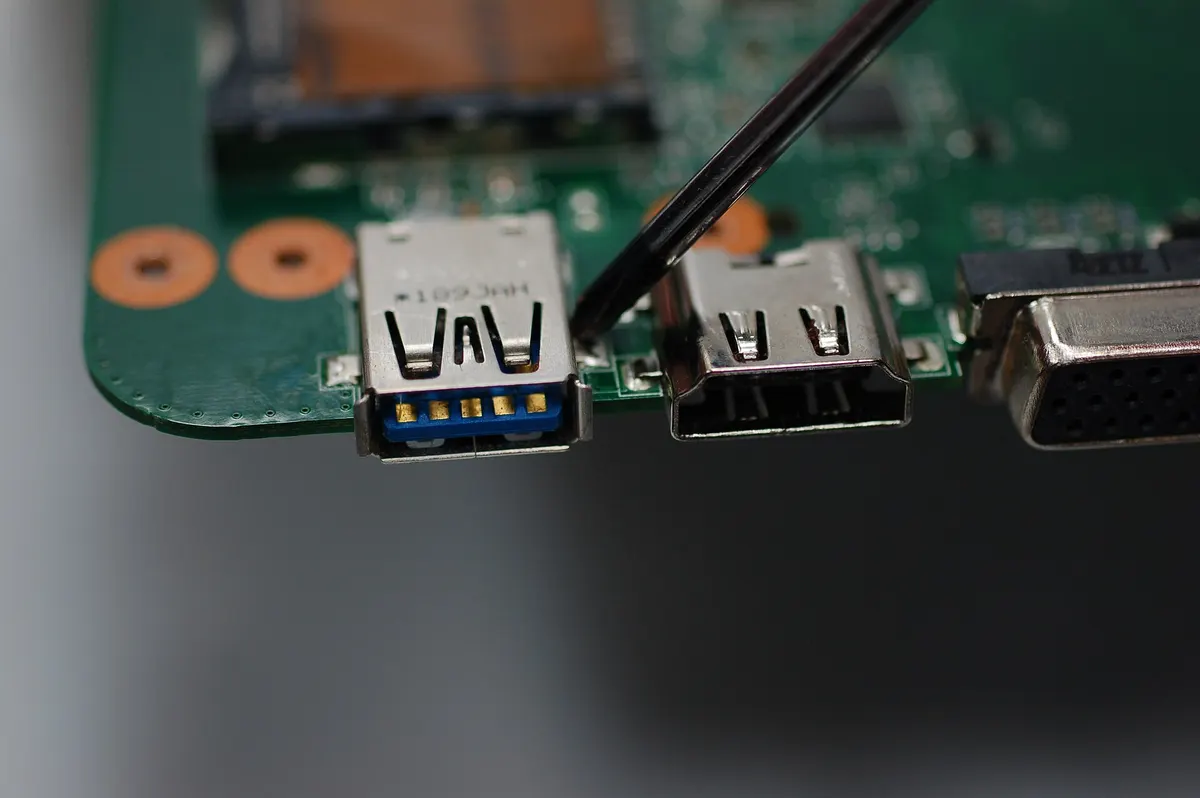
While most USB ports are standard black, white, or blue, you will occasionally spot a red port on a computer, motherboard, or docking station. Because colors are not officially regulated, these red ports can mean different things depending on the device and the manufacturer.
Most commonly, a red port signals a high-speed connection or a dedicated power supply that stays active even when your system is shut down. Understanding these distinctions helps you get the fastest transfer speeds and the most reliable charging for your devices.
What happened
The organization known as the USB Implementers Forum sets the technical specifications for various USB types, but it does not dictate what physical color manufacturers must use for the ports. As a result, hardware makers are free to apply colors like red however they see fit. Different companies generally stick to their own consistent internal rules, using red to signify a few specific capabilities.
In general, red ports are frequently used for the USB 3.2 or 3.1 Gen 2 standards. These ports can transfer data at up to 20 gigabits per second, making them some of the fastest options available in common usage. They are typically found on higher-end electronics like gaming laptops and advanced motherboards, and they are well-suited for connecting external solid-state drives or low-latency gaming peripherals such as mice, keyboards, and headsets.
Alternatively, many manufacturers use red to mark always-on charging ports. These continue supplying electrical power to connected devices even when the host computer is turned off. For example, Lenovo often uses red ports on ThinkPads and ThinkCentres as always-on charging ports with boosted power delivery for faster smartphone or accessory charging, though they sometimes substitute yellow or black depending on the specific model. HP, ASUS, and MSI similarly use red to denote high-speed data transfer ports that double as boosted power delivery connections, sometimes marketing them specifically as gaming device ports for faster response times.
Because color meanings vary across different brands and even between different models from the same brand, checking the specific device manual remains the most reliable way to confirm a port's exact function. Alternatively, users can check the physical port markings for clues. Manufacturers often stamp faster ports with the letters SS for SuperSpeed or include a specific speed number, while a lightning bolt symbol is commonly used to mark always-on power ports.
Why it matters
Plugging devices into the correct port ensures you get the best possible performance out of your hardware. Using a high-speed red port allows external solid-state drives to transfer large files rapidly without being throttled by older technology. Similarly, utilizing an always-on red port allows users to keep phones and accessories charged overnight without leaving an entire computer running.
The good news is that plugging a cable into the wrong port carries virtually no risk. Universal Serial Bus ports are designed to be backward compatible. If you connect a device to an earlier or later generation port, it will still function properly, even if it cannot take advantage of the absolute highest transfer speeds or maximum power output.
The background
Universal Serial Bus technology was developed to standardize the connection of peripherals to computers, replacing a chaotic array of proprietary serial and parallel ports. Over the decades, the technology has evolved through multiple generations, transitioning from early slow speeds up to modern ultra-fast standards like USB4, which can reach speeds of 40 to 80 gigabits per second in USB-C formats.
As data speeds increased dramatically, manufacturers began visually color-coding ports to help users instantly distinguish older technologies like USB 2.0 from faster iterations. While blue commonly denotes standard USB 3.0 or higher speeds, red, yellow, and purple emerged as proprietary markers used by individual brands to highlight specialized features like ultra-fast data lanes or continuous charging capabilities.
What happens next
Because port colorization remains entirely at the discretion of hardware designers, no industry-wide standardization is currently scheduled. Newer connection standards like USB-C and USB4 are increasingly adopting shape-based rules rather than color-coding, meaning consumers will continue to rely on device manuals and physical icons to identify specialized port functions.
Key takeaways
- Red USB ports typically indicate either high-speed data transfer or always-on power delivery for connected devices.
- There is no universal industry standard for USB port colors, meaning the exact function of a red port varies depending on the manufacturer and device model.
- Connecting a device to the wrong port carries no risk of damage because USB ports are fully backward compatible.
- Users can identify port capabilities without a manual by looking for physical icons such as the SuperSpeed SS marking or an always-on lightning bolt symbol.