
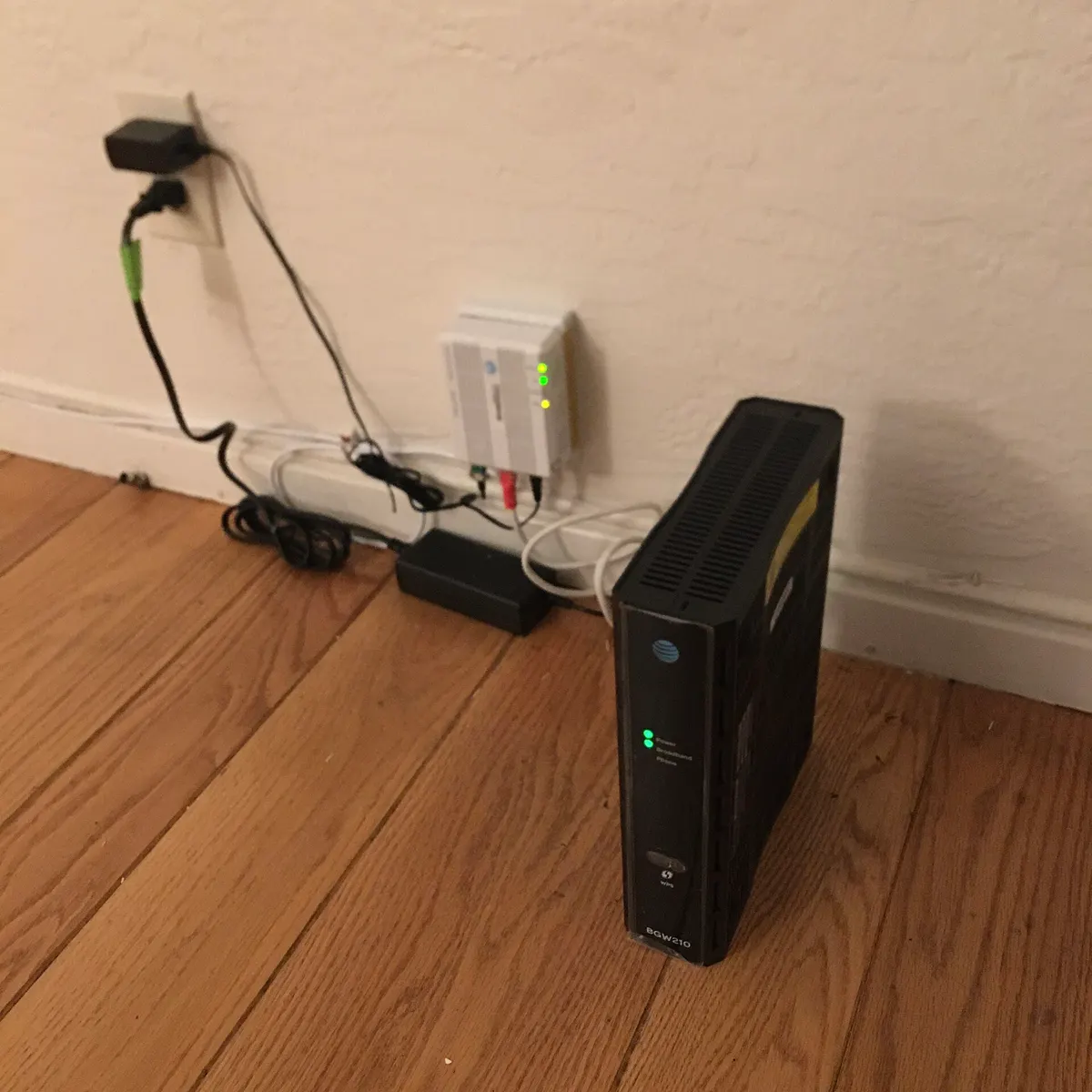
Finding an unknown device connected to your home Wi-Fi network can be jarring, especially when companion apps identify devices only as a string of letters and numbers or simply as "unknown." This is typically caused by built-in safety and privacy features on modern phones and tablets rather than an immediate emergency.
Securing your home network requires more than just removing unwanted gadgets from a list. You must also check individual device identifiers, block unauthorized hardware through your router controls, and immediately change both your Wi-Fi and administrator passwords to prevent future intrusions.
What happened
When a new device connects to a home network, internet service provider gateways and standalone routers often send notifications through companion apps. Because these applications do not always display clear device names, you must log into your router's app or web browser interface using your administrative credentials to view the list of attached or connected devices. You will need to locate terms like "connected devices" or "attached devices" to see the full roster.
Before taking any action, you must avoid blocking devices at random by comparing the hardware's Media Access Control address, commonly known as a MAC address, against the physical devices in your home. You can find a MAC address within the settings of most smartphones; for instance, iPhones display this under Settings, Wi-Fi Network, and Wi-Fi Address, while most Android devices house the information under Settings, About Device, and Status or Hardware Information.
Once you identify a stray device that does not belong to you, navigate to your router app's access controls, MAC filtering, or security settings to block or remove it. Make sure you select the correct hardware so you do not accidentally lock your own device out of the network. Because blocking a device does not stop an intruder who simply knows your password from reconnecting with a different device, you must act quickly to create and save a new, unique Wi-Fi password. If you write down the password, store it safely out of sight rather than taping it to your router or computer screen.
Why it matters
A strange device on your network is a strong indicator that someone has obtained unauthorized access to your Wi-Fi password. While removing the specific device temporarily clears it from your active list, it leaves the door open if the root security flaw remains unaddressed. Failing to secure your network leaves your personal digital traffic vulnerable to neighbors or outsiders.
Beyond updating your Wi-Fi password, safeguarding your network requires changing the separate administrator password that protects your router's settings. Keeping default passwords or utilizing outdated security protocols leaves your entire digital gateway exposed to further vulnerabilities.
The background
Home internet traffic flows through modems, routers, and gateway devices provided by internet service providers or purchased independently. These network hubs manage local connections and broadcast wireless signals throughout a home.
Over the years, wireless security protocols have evolved to protect users from eavesdropping and unauthorized access. Older protocols like Wired Equivalent Privacy, commonly known as WEP, and early iterations of Wi-Fi Protected Access, or WPA, have become outdated. Modern networking hardware relies on stronger iterations such as WPA2 Personal and WPA3 Personal to encrypt wireless communications safely.
What happens next
After removing unwanted devices and changing your Wi-Fi and administrator passwords, you must examine your router's wireless security settings to ensure you are utilizing the strongest available encryption standard like WPA3 Personal or WPA2 Personal. You must also check that your router's firmware is up-to-date with automatic updates enabled. If your networking hardware is too old to receive ongoing manufacturer support and firmware updates, it is time to replace the equipment entirely.
Key takeaways
- Companion apps for routers often display unknown devices as a string of letters and numbers due to modern phone privacy features.
- You must match the MAC address in your router's connected device list to the hardware settings on your own phones and tablets before blocking anything.
- Access controls and MAC filtering options inside your router app allow you to block unwanted hardware from your network.
- Changing your Wi-Fi password is not enough; you must also update your router's separate administrator password to fully secure your settings.
- Modernizing your home network involves enabling up-to-date security protocols like WPA2 or WPA3 and keeping your router firmware current.