
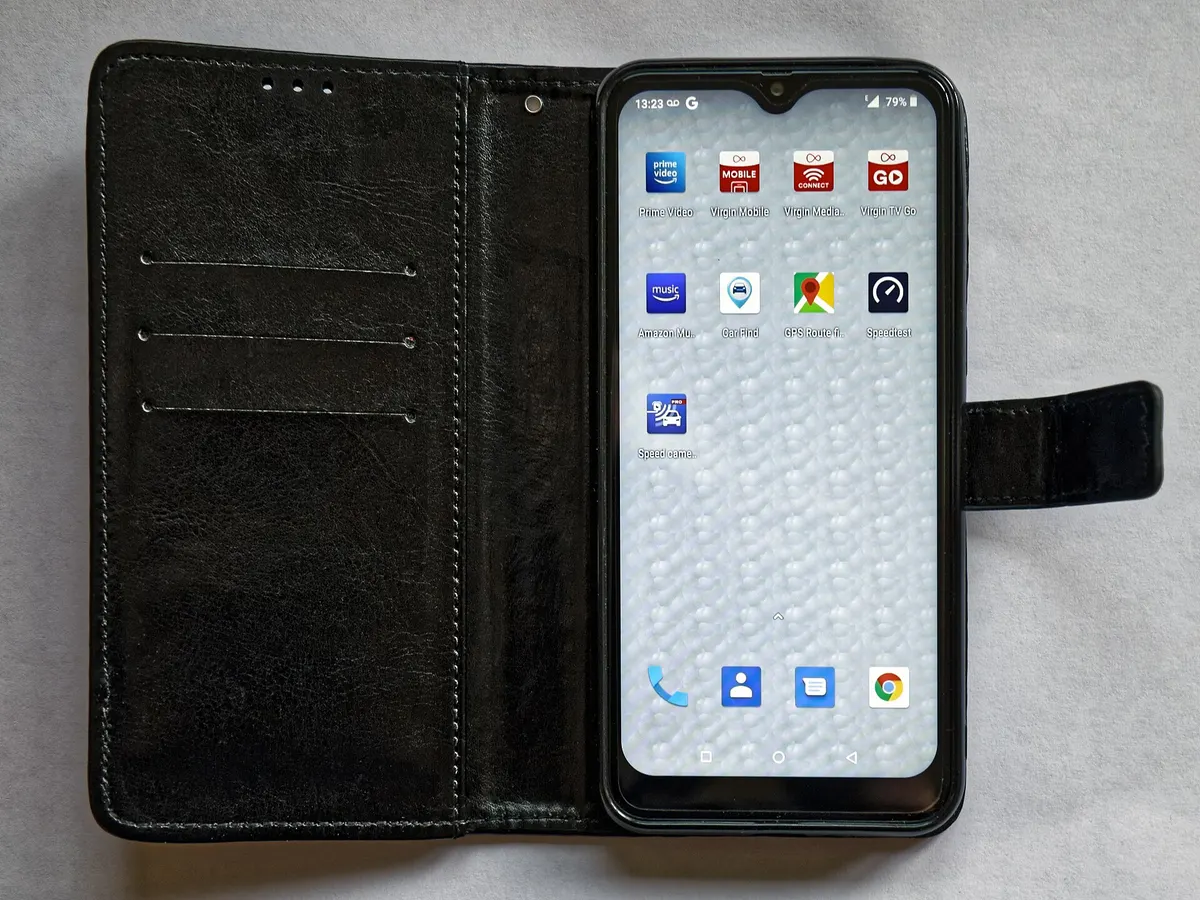
Android phones provide deep customization options for organizing apps, but default settings can occasionally frustrate users by freezing or rearranging their home screen icons. Understanding these settings makes managing your layout simple.
Many Android devices feature automatic sorting in the app drawer, which organizes icons alphabetically or by install date. Major software updates can also alter home screen grids. If your icons refuse to move entirely, the issue typically stems from a locked home screen or a bloated launcher cache.
What happened
Many Android manufacturers enable locked home screens by default to prevent accidental layout changes. On Samsung devices, you can disable this by navigating to Settings, searching for Home Screen, and toggling off the Lock Home Screen Layout option. Other Android devices usually house this toggle under a Home tab in the settings menu.
Even with an unlocked screen, icons may occasionally reorganize automatically if sorting options are active. Users can disable these features within the same home screen settings menu. If layout issues persist, resetting the home screen and restarting the device can help.
For devices lacking a locked home screen layout, such as Google Pixel phones, frozen icons may require clearing the launcher cache. The launcher cache stores temporary data for the home screen, and a bloated cache can cause crashes and erratic behavior. Users can fix this by navigating to the device settings, locating the specific launcher app—such as Pixel Launcher for Google or One UI for Samsung—and clearing the cache within the storage settings. Restarting the phone afterward ensures the cache clears completely, while booting into safe mode can help identify if a third-party app is causing the unresponsiveness.
Why it matters
Smartphone customization relies heavily on an intuitive and stable home screen layout. When devices unexpectedly freeze or rearrange applications, it creates frustration and wastes time for users trying to access frequently used tools. Knowing how to adjust these specific settings restores personal control over the device interface without requiring complex technical troubleshooting.
What to know
Different manufacturers use distinct software interfaces, meaning the exact path to find home screen settings or launcher apps can vary between brands like Samsung and Google. Furthermore, third-party applications can occasionally interfere with system stability, which is why safe mode troubleshooting remains a useful diagnostic tool for persistent unresponsiveness.
Key takeaways
- Android phones often lock home screen layouts by default to prevent accidental icon movement.
- Disabling the lock home screen setting in the device menu restores the ability to move apps.
- Clearing the launcher cache resolves frozen icons and erratic behavior caused by bloated temporary data.
- Restarting your device or using safe mode helps ensure settings changes take effect and rules out third-party app interference.